
Create a restaurant menu in WordPress with the JelloPoint plugin, then style it with Elementor Free. This guide follows the manual workflow, available in Free and Pro. After setup, update dishes, descriptions, prices and menu order in WordPress without editing the Elementor page.
JelloPoint Restaurant Menu separates your menu content from its presentation. Create the content in WordPress, then use the Elementor Free widget to choose how it looks on your website.
For your first menu, start with one menu, one section and two or three dishes. You can expand it after checking the result.
If JelloPoint is already active, continue to the next step.
If you are installing the Pro edition, follow the license activation screen for your purchase. If WordPress cannot install the ZIP, check that you selected the plugin package rather than a folder containing several downloads.
This creates the menu collection. It does not yet add dishes or create the website page.
Repeat for Mains, Desserts or other groups. Use Choose Existing Section → Add Existing Section when you want to reuse a section that already exists.
Repeat for the other dishes. An item can appear in more than one menu, with one section chosen for each menu.
Return to Menu Builder, select your menu and click Refresh if you created items in another tab. Check that each item appears in the intended section.
You can also place unassigned items from the builder: choose a Target Section, tick the items in Unassigned Items and click Add selected to Section.
Drag sections and items into the order you want, then click Save Structure. To make a subsection, drag a section slightly to the right; drag it left to return it to the higher level.
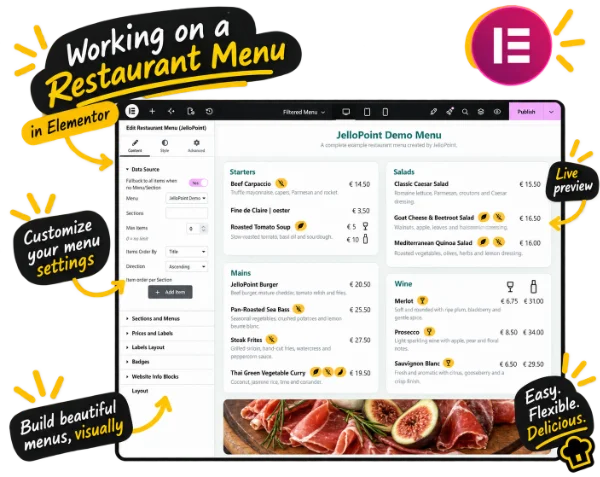
Open the published page and check the title, item order, descriptions, prices and badges. Use Elementor’s tablet and mobile previews, and check the page on a phone if possible. Confirm that long names and prices remain easy to read.
For future content changes, edit the item under JelloPoint → Menu Items and save it. For arrangement changes, use Menu Builder and Save Structure. For appearance changes, edit the Elementor widget.
You only need to reopen Elementor when changing the layout or styling. To create a menu from existing CSV or JSON data, see menu import with JelloPoint Pro.
If something is missing or looks different from your preview, use the Troubleshooting guide next.
Choose the Menu explicitly in the Elementor widget. When no menu or section is selected, the fallback option can display items from across your site.